
How to add sections to the Noticeboard widget
The purpose of the Noticeboard widget is to provide visitors with a quick link to content inside your website without the need to navigate through the menus. You don't directly edit the noticeboard widget but push sections to it. The content you add is then presented as a card with an image, heading, body text and a button. For the cards to look their best we recommend you try to create a section on your page that includes all of these elements.
Note: The button at the bottom of each card is added automatically.
To edit, move or delete the individual noticeboard cards there is a new Noticeboard Tab available from the Admin button at the top of the editor.
Click here for Noticeboard Admin Tutorial
We have also created lots of graphics for you to use in your noticeboard, look to the top right of the editor and you should see the Gallery Tab.
Follow these steps:

| Click image to zoom! |
Step 1
Single-click the section you want to add to the noticeboard widget.

| Click image to zoom! |
Step 2
Single-click the 'Add to Noticeboard' tool.
| Click image to zoom! |
Step 3
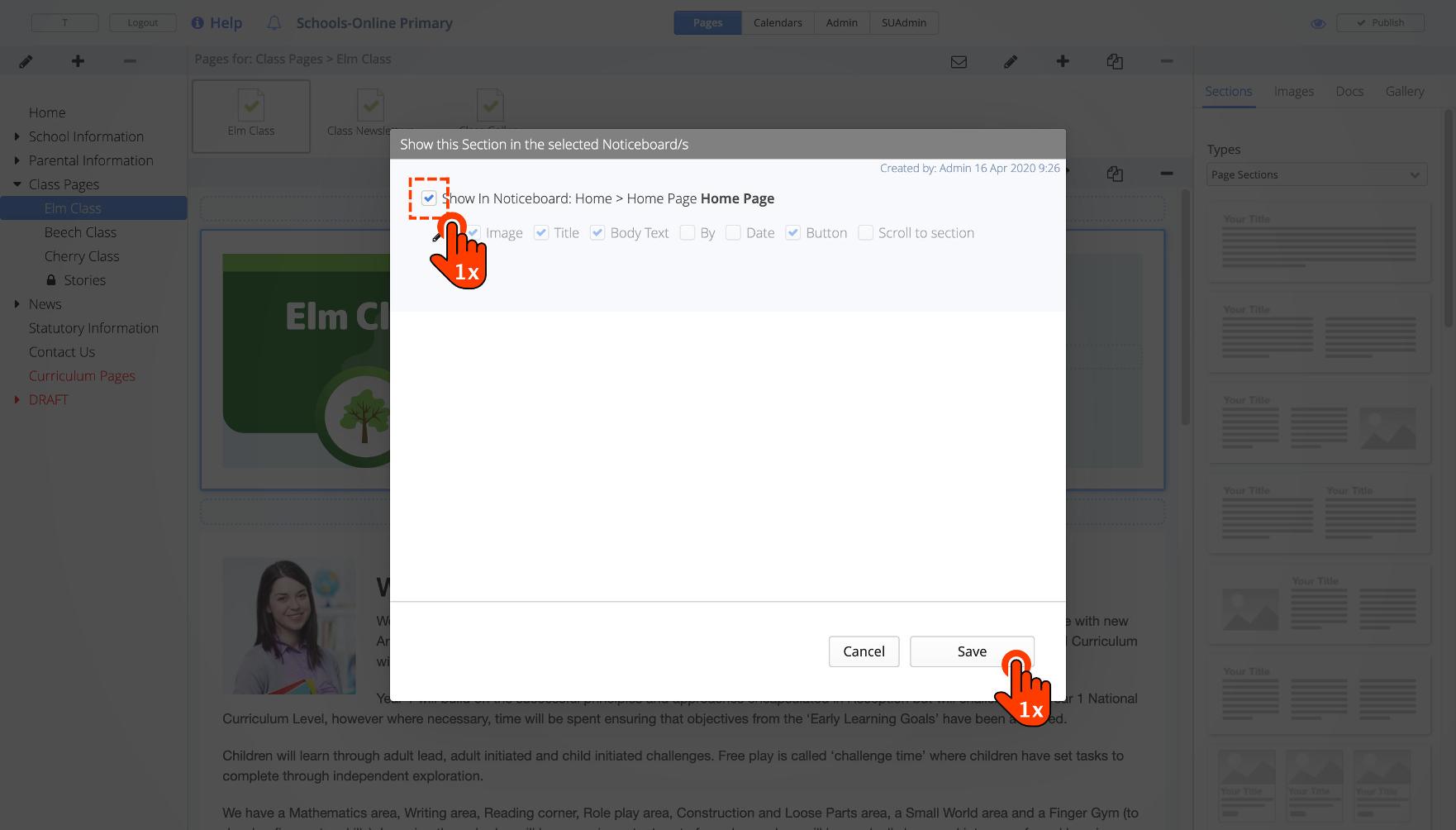
Click the 'Show in Noticeboard' checkbox to add the section to the noticeboard.
If you have multiple noticeboards they will all be shown in this window.
Save and then publish your site.
| Click image to zoom! |
Step 4
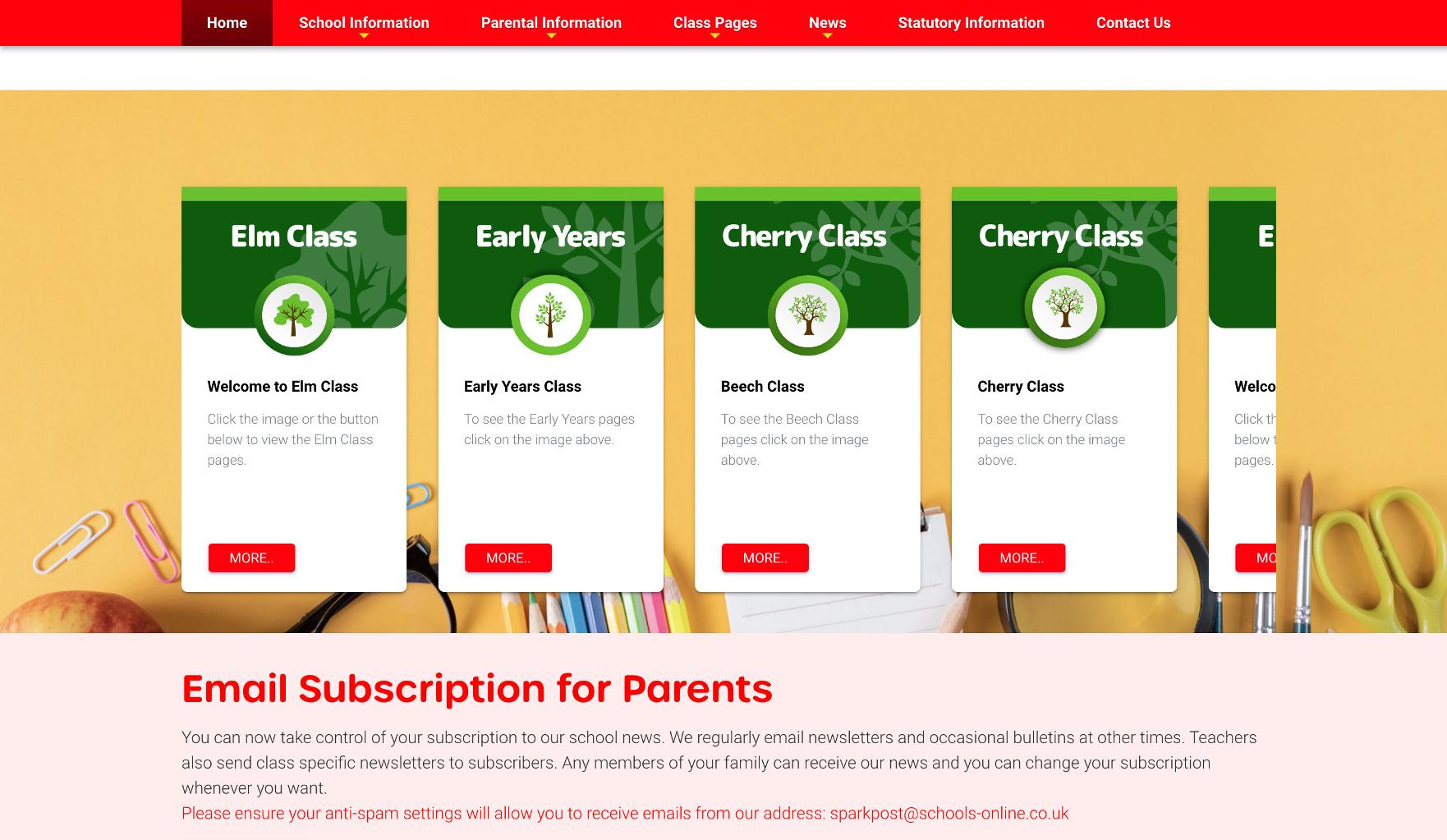
To see the changes visit the homepage of your website and refresh to see the card has been added to the first position in your Noticeboard.
Force Refresh your browser if you don't see the latest updates.
Google Chrome: Hold CTRL and click the refresh button with your mouse.

How to hide sections
Once you have added a section to the noticeboard you might want to hide it from the page.
Follow these steps:

Step 5
Double-click the the section you want to hide.

Step 6
Single-click the 'Hide this Section' checkbox and Save.

Step 7
Single-click the Publish button.
Single-click the 'Eye' tool to see the live page.
Step 7
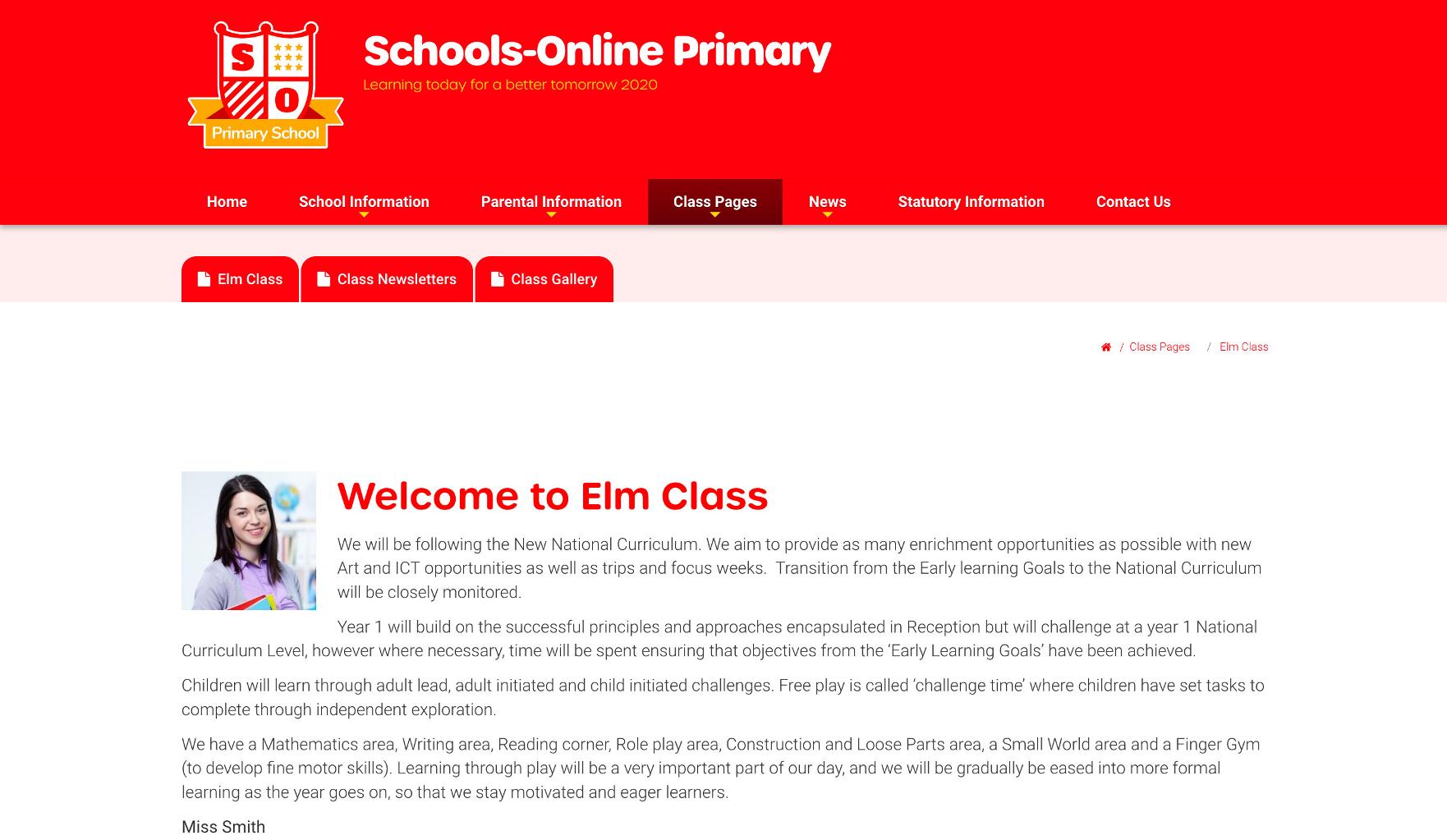
Your section is now hidden but still showing in the Noticeboard.